A Helm chart you can't read becomes objects you can.
Before and after
Before: the Helm chart
{{- end }}{{- if .Values.operator.priorityClassName }}
priorityClassName: {{ .Values.operator.priorityClassName }}{{- end }}
containers:
- name: gpu-operator
image: {{ include "gpu-operator.fullimage" . }}
imagePullPolicy: {{ .Values.operator.imagePullPolicy }}
command: ["gpu-operator"]
args:
- --leader-elect
{{- if .Values.operator.logging.develMode }}
- --zap-devel
{{- else }}{{- if .Values.operator.logging.timeEncoding }}
- --zap-time-encoding={{- .Values.operator.logging.timeEncoding }}
16 lines of templates/operator.yaml, around its image line. The chart has many files like this.
After: in ConfigHub
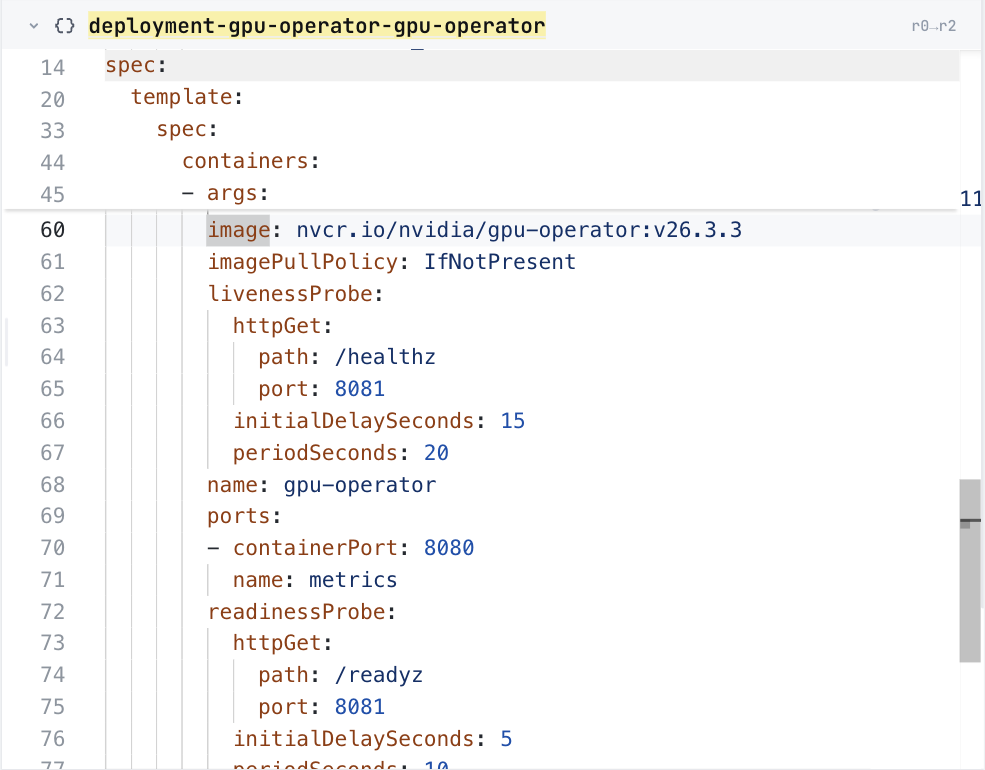
The same image line in ConfigHub, as a plain value. Taken in the helm-catalog organization on 2026-10-25, showing the GPU Operator Deployment, at its image line.
ConfigHub holds this as 26 Units, one for each of the 25 objects the installer writes and one installer record.
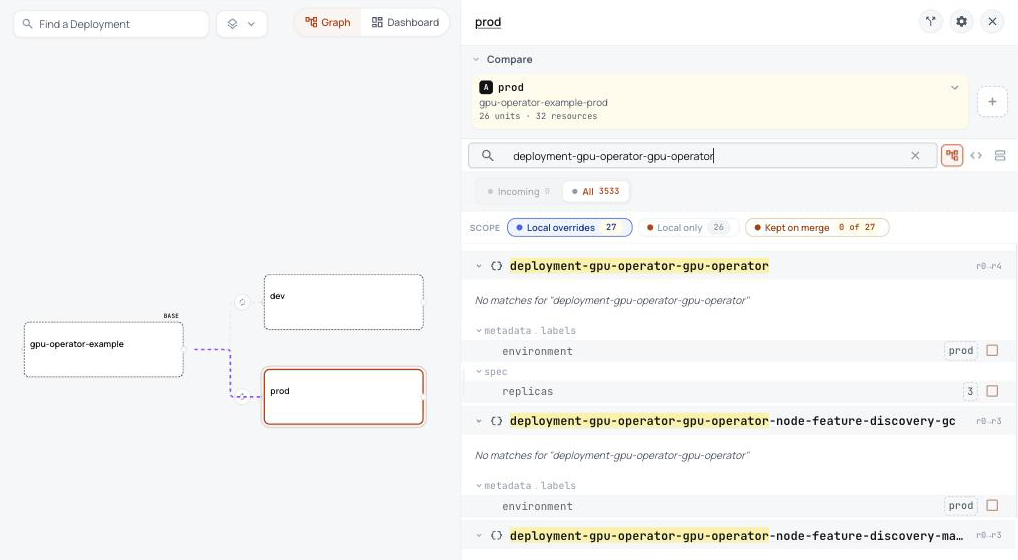
In ConfigHub: one base, and a variant for each environment
Prod's panel lists what prod changes from the base, here its label and three replicas of the operator. Taken in the helm-catalog organization on 2026-10-26, showing the GPU Operator base with its dev and prod variants, and the label and three replicas prod sets on the operator.
The template's image line becomes one plain value you can read, and so does every other field.
The 8 setup objects Helm runs out of sight become steps you can read.
Every object is written out, so you can review it before anything runs.
What Helm does that you never see, and what happens here instead
What Helm does
What happens here instead
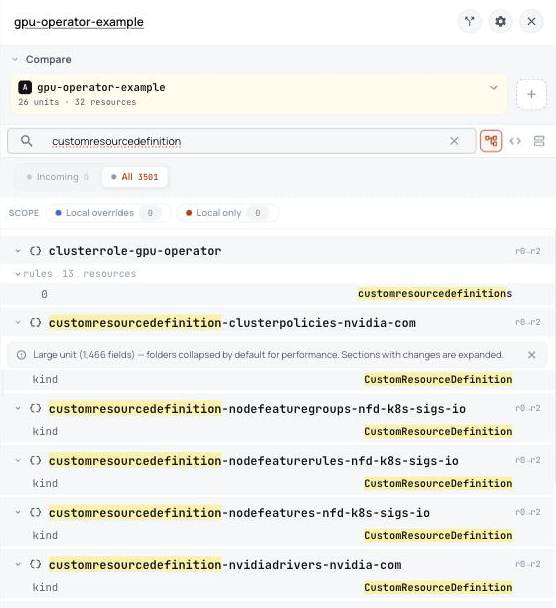
Adds 5 new kinds of Kubernetes object, such as ClusterPolicy, NVIDIADriver, NodeFeature. A plain helm template leaves them out.
They are in ConfigHub with everything else, and they go in first, so the objects that use them are not rejected.Show me
The 5 new kinds
ClusterPolicy
NVIDIADriver
NodeFeature
NodeFeatureGroup
NodeFeatureRule
Runs a Job before each upgrade that moves its CRDs to the new version, and one after uninstalling that removes the node labels it added.
Nothing runs out of sight. The plan says to apply the new CRDs first on an upgrade, and to run the label clean-up Job after deleting.Show me
What Helm runs, and when
ServiceAccount gpu-operator-node-feature-discovery-prune: after uninstalling
ServiceAccount gpu-operator-upgrade-crd-hook-sa: before upgrading
ClusterRole gpu-operator-node-feature-discovery-prune: after uninstalling
ClusterRole gpu-operator-upgrade-crd-hook-role: before upgrading
ClusterRoleBinding gpu-operator-node-feature-discovery-prune: after uninstalling
ClusterRoleBinding gpu-operator-upgrade-crd-hook-binding: before upgrading
Job gpu-operator-node-feature-discovery-prune: after uninstalling
Job gpu-operator-upgrade-crd: before upgrading
Decides at install time when each of its hidden steps runs, in an order you cannot see.
The plan writes down 2 steps, in order, for whoever delivers.Show me
The plan's steps
Before an upgrade, move the CRDs to the new version. Helm does not upgrade CRDs from a chart's crds directory, so the chart ships this Job: it applies the CRD files inside the new operator image, with its own ServiceAccount, ClusterRole and ClusterRoleBinding. A workflow that applies this base's CRD bundle before the other objects does the same work and should skip the Job. A workflow that leaves CRDs alone must run these four objects first, wait for the Job to complete, then delete them.
After deleting, prune node-feature-discovery labels from the nodes. The Job runs nfd-master -prune, which removes node-feature-discovery labels, annotations and taints from every node, with its own ServiceAccount, ClusterRole and ClusterRoleBinding. Apply the four objects only after the base objects are deleted, wait for the Job to complete, then delete them. Never apply them with the base: at install time the prune would run immediately.
ConfigHub keeps configuration as plain objects, with a history of every change. Loading puts this chart's objects in a Space, a folder in your ConfigHub organization.
Load it into your ConfigHub
Sign in with the first line, then paste the rest. It fetches the NVIDIA GPU Operator package, writes its files, and saves them as a Space called gpu-operator-example in your organization. The rest makes a dev and a prod variant of it, and prod runs three replicas of the operator. It touches no cluster.
$ cub auth login

$ cub installer setup --pull oci://europe-west1-docker.pkg.dev/nth-fort-499605-q5/helm-expt/nvidia-gpu-operator:v26.3.3@sha256:abd8475d6bfeabe88acc2d6a319a04054a9e84046d69926dcee4717674329a8f --base default --work-dir ./gpu-operator-example --non-interactive --namespace gpu-operator && cub installer upload --work-dir ./gpu-operator-example --space gpu-operator-example && cub component create gpu-operator-example && cub space update --patch gpu-operator-example --component gpu-operator-example

$ cub variant create dev gpu-operator-example --change-desc "Clone the base as dev"

$ cub variant create prod gpu-operator-example --change-desc "Clone the base as prod"

$ cub function set --space gpu-operator-example-dev --change-desc "Label every object environment dev" set-label environment dev

$ cub function set --space gpu-operator-example-prod --change-desc "Label every object environment prod" set-label environment prod

$ cub function set --space gpu-operator-example-prod --unit deployment-gpu-operator-gpu-operator --change-desc "Run three replicas in prod" set-replicas 3
No account needed. This fetches the NVIDIA GPU Operator package and writes every object into a folder you can open. To check your own chart and values instead, see Is my configuration right?